
Aaj ke modern web design mein simple buttons ki jagah animated buttons zyada use kiye ja rahe hain. Jab koi visitor button par hover karta hai aur button smoothly animate hota hai, to website zyada professional aur engaging lagti hai.
Agar aap Elementor use karte hain, to aap bina coding ke attractive animated buttons create kar sakte hain. Is tutorial mein hum step-by-step dekhenge ki Elementor mein animated button kaise banaya jata hai.
What is an Animated Button?
Animated Button ek aisa button hota hai jo user interaction par visual effect show karta hai.
Animation hover karne par ya click karne par trigger ho sakti hai.
Examples:
- Button size increase hona
- Color smoothly change hona
- Shadow appear hona
- Icon move hona
- Glow effect show hona
Ye effects button ko zyada noticeable banate hain aur users ko click karne ke liye encourage karte hain.
Why Use Animated Buttons?
Animated buttons sirf design ke liye nahi, balki user engagement improve karne ke liye bhi useful hote hain.
Benefits of Animated Buttons
✅ CTA Buttons ko highlight karte hain
✅ Website ko modern look dete hain
✅ User attention attract karte hain
✅ Better user experience create karte hain
✅ Click-through rate improve kar sakte hain
What You Need Before Starting
Animated button create karne ke liye aapke paas hona chahiye:
- WordPress Website
- Elementor Installed
- Basic Elementor Knowledge
Good news ye hai ki basic animations Elementor Free Version mein bhi available hain.
Step 1: Open Your Page in Elementor
Sabse pehle us page ko open karein jahan aap animated button add karna chahte hain.
Steps
- WordPress Dashboard open karein
- Pages section mein jayein
- Desired page select karein
- Edit with Elementor par click karein
Elementor editor load ho jayega.
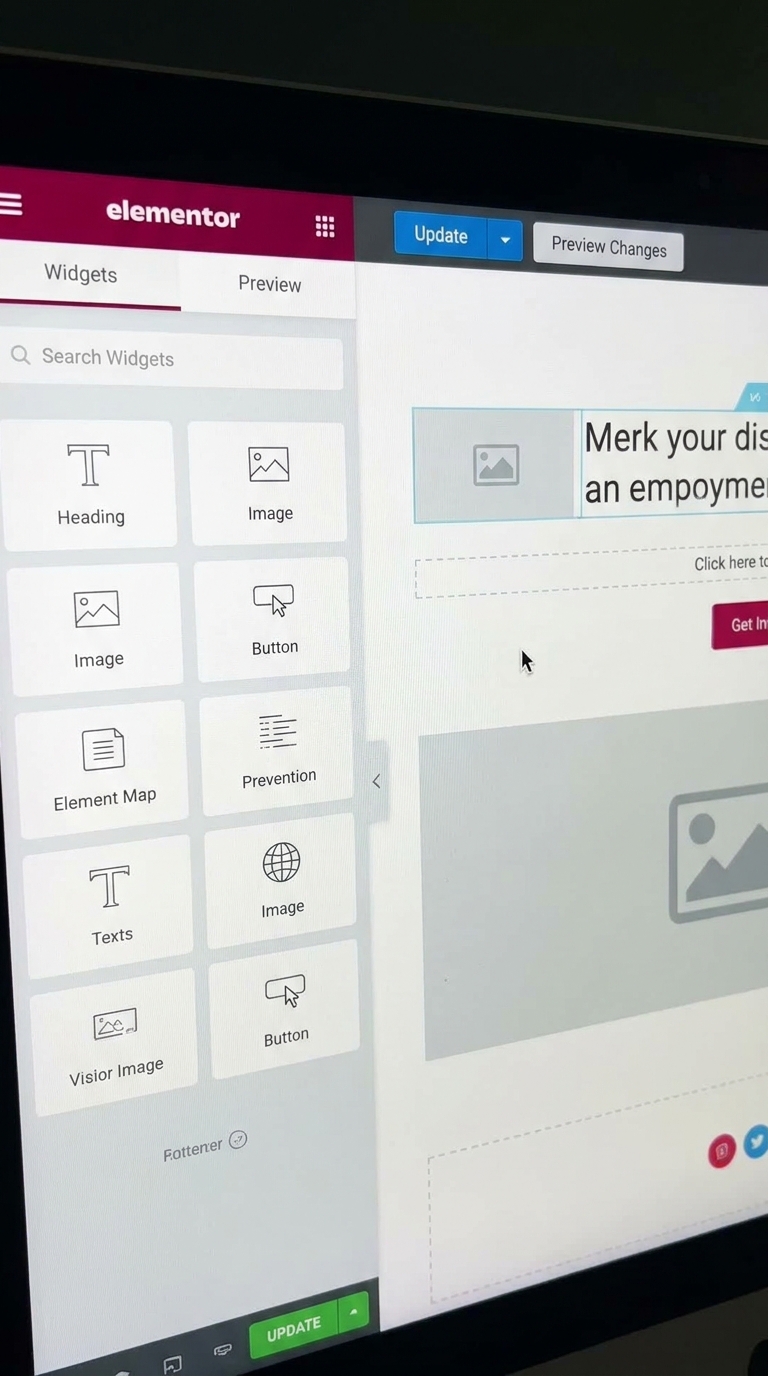
Step 2: Add a Button Widget
Ab page par button add karte hain.
Steps
- Elementor Widget Panel open karein
- Search Box mein Button type karein
- Button Widget ko drag and drop karein
Button page par show hone lagega.
Step 3: Customize Button Content
Ab button ka text aur link set karein.
Example CTA Text
- Get Started
- Learn More
- Contact Us
- Download Now
- Start Free Trial
Button ka URL bhi add karein jahan visitors ko redirect karna hai.
Step 4: Style Your Button
Animation add karne se pehle button ka basic design create karein.
Style Tab Open Karein
Customize:
- Background Color
- Text Color
- Typography
- Border Radius
- Padding
Recommended Settings
Background Color: Blue
Text Color: White
Border Radius: 12px
Padding: 15px 30px
Ye settings clean aur professional look create karti hain.
Step 5: Add Hover Animation
Ab actual animation add karte hain.
Steps
- Button Widget Select Karein
- Advanced Tab Open Karein
- Hover Animation Option Search Karein
- Animation Select Karein
Elementor mein multiple animations available hoti hain:
- Grow
- Shrink
- Pulse
- Push
- Pop
- Float
- Sink
- Bob
Recommended Animation
Grow Animation
Ye hover par button ko slightly bigger bana deta hai.
CTA buttons ke liye ye sabse popular option hai.
Step 6: Add Color Transition Effect
Animated buttons mein smooth color transition kaafi important hoti hai.
Hover State Setup
Style → Hover
Example
Normal State:
- Blue Background
Hover State:
- Purple Background
Ya
Normal State:
- Black Background
Hover State:
- Orange Background
Ye effect button ko more interactive banata hai.
Step 7: Create a Shadow Animation
Shadow animation button ko premium appearance deti hai.
Steps
- Style Tab Open Karein
- Box Shadow Add Karein
- Hover State Select Karein
- Shadow Blur Increase Karein
Example
Normal:
- Blur 10
Hover:
- Blur 25
Result:
Hover karte hi button floating effect create karega.
Step 8: Add Icon Animation
Agar aap CTA button ko aur attractive banana chahte hain to icon add karein.
Steps
- Button Content Tab Open Karein
- Icon Select Karein
- Icon Position Choose Karein
Popular Icons:
- Arrow Right
- Download
- Shopping Cart
- Play Button
Animated icon buttons zyada noticeable hote hain.
Step 9: Create a Combined Animation Effect
Best results ke liye multiple effects combine kar sakte hain.
Example Combination
✔ Grow Animation
✔ Color Transition
✔ Shadow Increase
✔ Icon Movement
Ye combination modern landing pages mein frequently use kiya jata hai.
Step 10: Test Your Animated Button
Publish karne se pehle button ko test karna zaroori hai.
Check:
✅ Hover Animation
✅ Button Speed
✅ Color Visibility
✅ Mobile Responsiveness
✅ CTA Readability
Elementor Responsive Mode ka use karke mobile preview bhi check karein.
Best Animated Button Ideas for Elementor
1. Grow Effect
Hover par button slightly enlarge hota hai.
2. Shadow Lift Effect
Button hover par upar lift hota hua feel deta hai.
3. Color Transition Effect
Smooth background color change.
4. Glow Animation
Attention-grabbing CTA buttons ke liye.
5. Icon Slide Effect
Arrow ya icon hover par move hota hai.
Common Mistakes to Avoid
❌ Too many animations
❌ Very bright flashing colors
❌ Large scale effects
❌ Poor text contrast
❌ Slow transition speed
❌ Ignoring mobile users
Pro Tips for Better Animated Buttons
Keep Animations Smooth
Fast aur smooth animations zyada professional lagti hain.
Focus on CTA
Animation ka purpose button ko highlight karna hona chahiye.
Maintain Brand Colors
Website branding ke according colors choose karein.
Avoid Overusing Effects
Har button par animation use karna zaroori nahi hota.
Final Thoughts
Animated Buttons Elementor mein user engagement improve karne aur CTA buttons ko highlight karne ka ek powerful method hain. Elementor ke built-in hover animations aur styling options ki help se aap bina coding ke professional animated buttons create kar sakte hain.
Agar aap apni website ko modern look dena chahte hain aur visitors ko action lene ke liye encourage karna chahte hain, to animated buttons definitely try karein.
FAQs
Can I create animated buttons in Elementor Free?
Yes, Elementor Free version mein basic hover animations available hain.
Which animation is best for CTA buttons?
Grow, Pulse aur Shadow Lift effects CTA buttons ke liye kaafi effective hote hain.
Do animated buttons improve conversions?
Animated buttons user attention attract karte hain, jisse click-through rate improve ho sakta hai.
Is coding required?
No. Elementor ke built-in settings ki help se aap bina coding ke animated buttons create kar sakte hain.