
Icons website ko zyada professional, attractive aur user-friendly banate hain. Agar aap Elementor use kar rahe ho, toh aap easily buttons, headings, lists, aur boxes ke saath icons add kar sakte ho — bina coding ke.
Is guide me hum simple Hinglish language me step-by-step dekhenge ki Elementor me icons kaise add karte hain.
Why Icons Important Hote Hain?
Website me icons use karne ke benefits:
Website modern dikhti hai
Important content highlight hota hai
User experience improve hota hai
Services aur features easily samajh aate hain
CTA buttons attractive lagte hain
Example:
Phone icon 📞
Email icon ✉️
Star icon ⭐
Shopping cart 🛒
Elementor Me Icons Add Karne Ke Different Ways
Aap Elementor me icons multiple jagah add kar sakte ho:
1. Icon Widget
2. Button ke saath Icon
3. Icon Box
4. Heading/List ke saath Icon
5. Social Media Icons
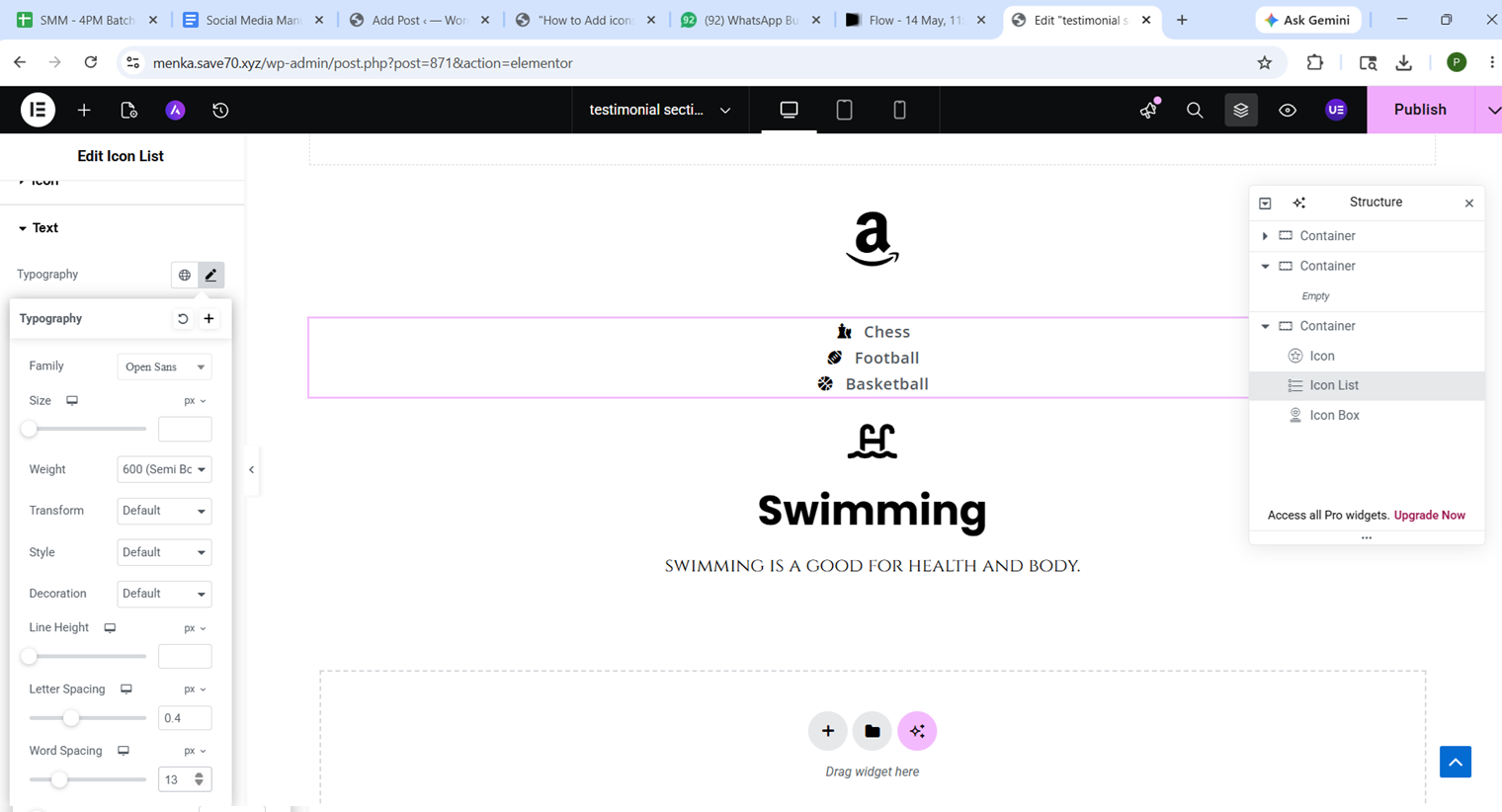
Step 1: Elementor Editor Open Karein
WordPress Dashboard me login karein
Pages → Edit with Elementor par click karein
Ab Elementor editor open ho jayega.
Step 2: Icon Widget Search Karein
Left sidebar me search box dikhega.
Usme type karein:
Icon
Ab aapko Icon widget show hoga.
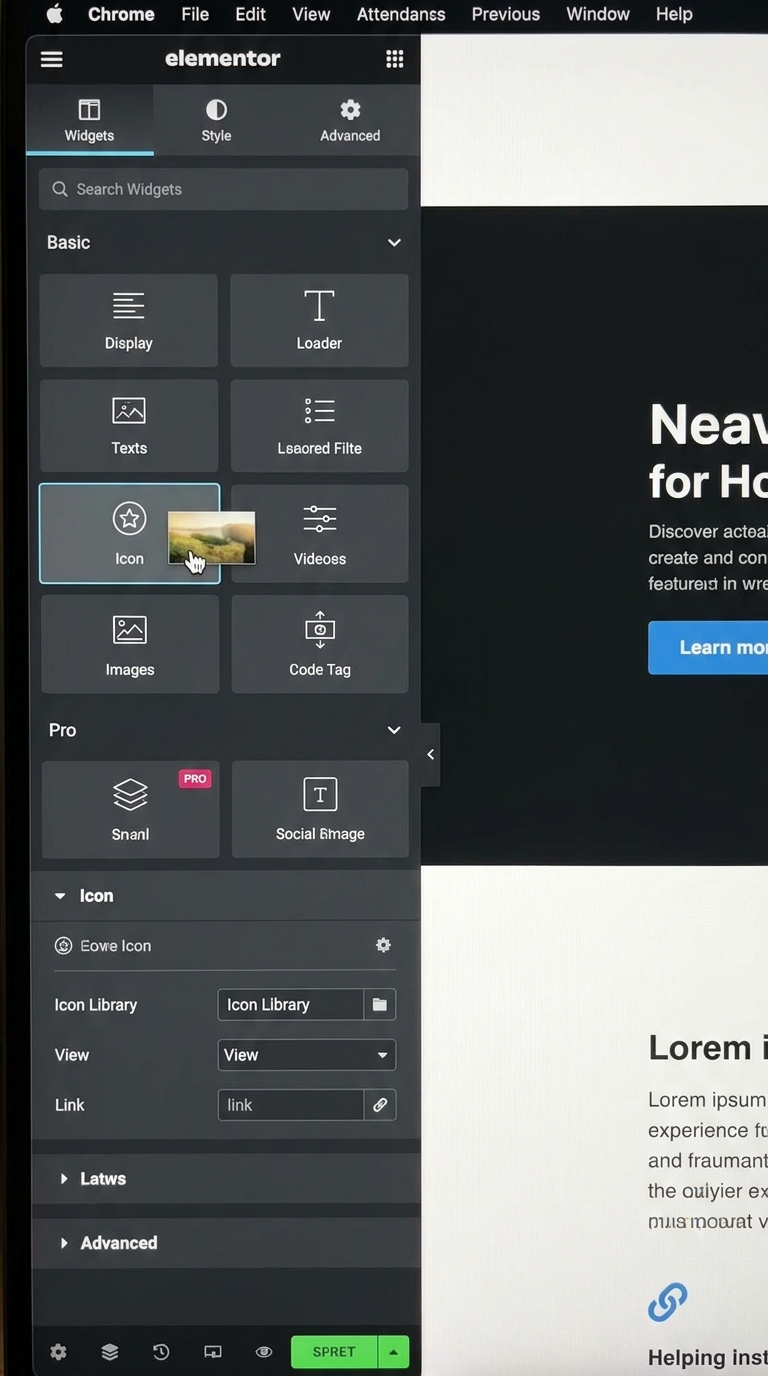
Step 3: Icon Widget Drag & Drop Karein
Icon widget ko hold karein
Jahan icon add karna hai wahan drag & drop karein
Ab default icon screen par show ho jayega.
Step 4: Icon Change Karein
Ab icon customize karte hain.
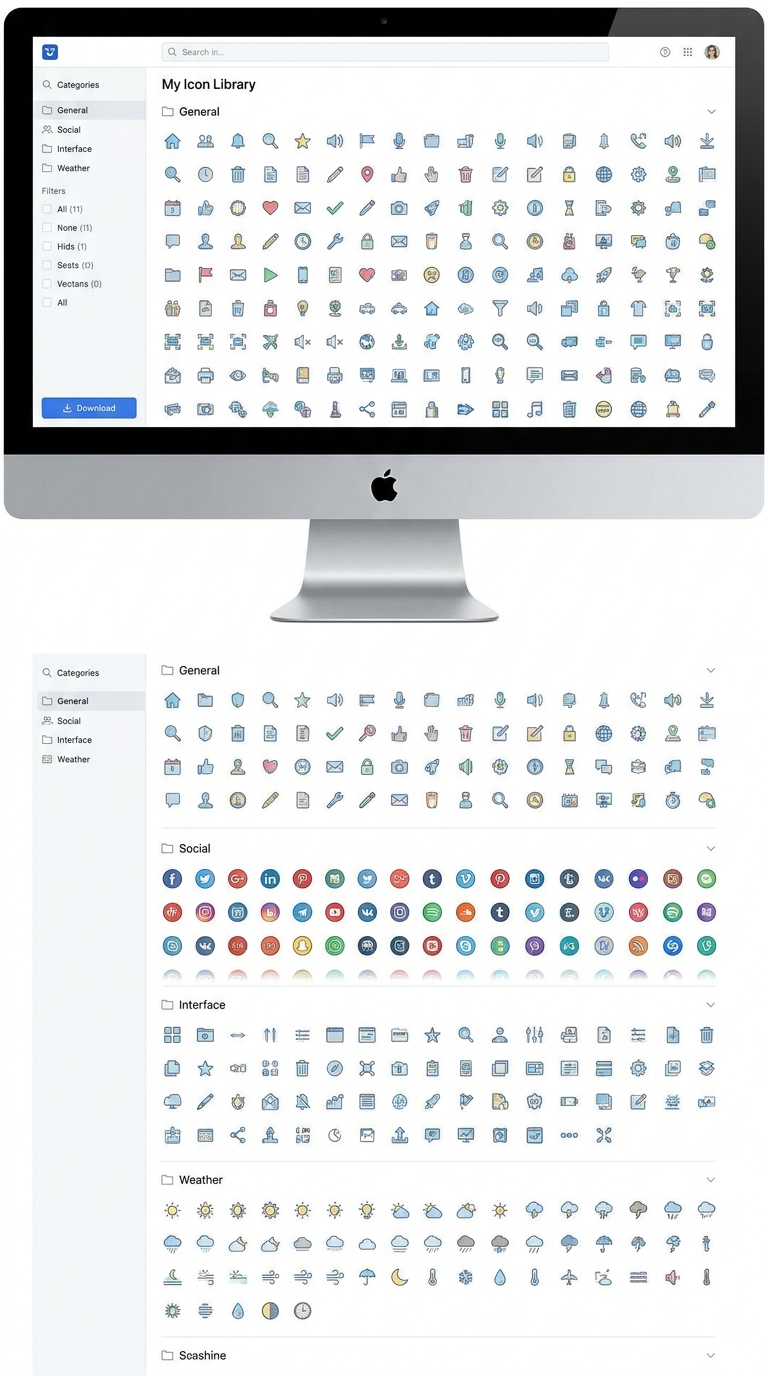
Left panel me icon par click karein
Elementor icon library open hogi
Yahan aapko:
Arrows
Social icons
Business icons
Shopping icons
Star icons
Contact icons
bahut options milenge.
Apna favorite icon select karein aur Insert par click karein.
Step 5: Icon Size Change Karein
Style tab open karein.
Yahan:
Size increase/decrease kar sakte ho
Color change kar sakte ho
Rotation add kar sakte ho
Example:
Small icon
Medium icon
Large icon
Step 6: Icon Color Change Karein
Style → Primary Color
Yahan se:
Brand color
Gradient color
Custom color
choose kar sakte ho.
Professional websites mostly:
Black
Blue
Purple
Orange
colors use karti hain.
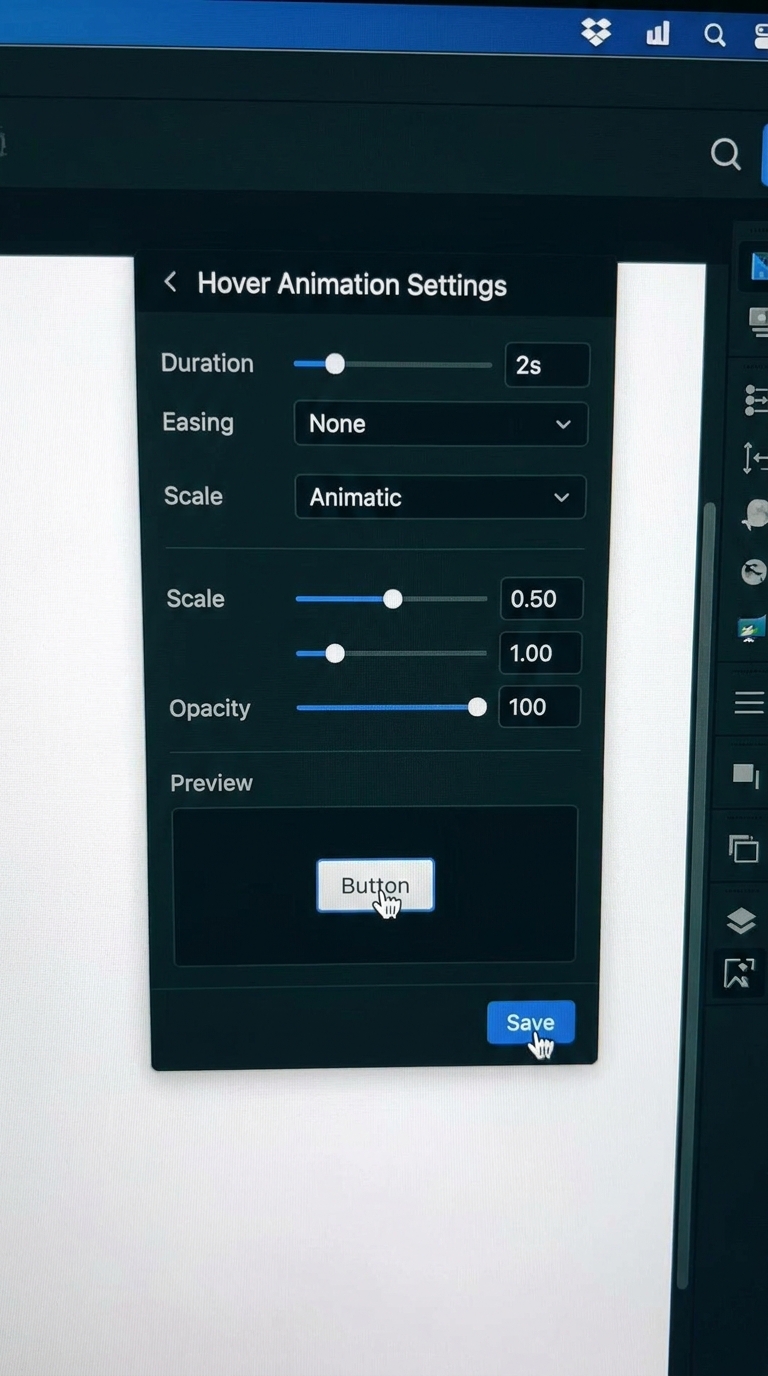
Step 7: Hover Effect Add Karein
Hover effect website ko interactive banata hai.
Steps:
Style → Hover
Hover color choose karein
Animation add karein
Popular hover animations:
Grow
Rotate
Float
Bounce
Step 8: Button Ke Saath Icon Add Karein
Agar aap button me icon add karna chahte ho:
Button widget add karo
Content tab open karo
Icon option enable karo
Icon choose karo
Example:
Download Button → Download icon
Contact Button → Phone icon
Cart Button → Shopping cart icon
Step 9: Social Media Icons Add Karein
Elementor me social icons add karna bhi easy hai.
Social Icons widget drag karo
Facebook, Instagram, LinkedIn, YouTube icons add karo
Apne profile links paste karo
Ye footer aur contact pages me useful hota hai.
Social media icons par alag blog bnaungi apko step wise btaungi kese social link upload karte hai icons ke sath taki easily work kare

Step 10: Mobile View Check Karein
Icons desktop par ache lagte hain but mobile optimization bhi important hai.
Bottom me:
Responsive Mode par click karo
Mobile View open karo
Check karo:
Icon size proper hai ya nahi
Alignment correct hai ya nahi
Best Tips for Using Icons in Elementor
1. Overuse Mat Karo
Bahut zyada icons website ko cluttered bana dete hain.
2. Same Style Use Karo
Outline aur filled icons ko mix na karo unnecessarily.
3. Brand Colors Follow Karo
Icons ko website branding ke according rakho.
4. Spacing Maintain Karo
Icons ke around proper spacing do.
Common Problems & Solutions
Icon Show Nahi Ho Raha?
Elementor update karo
Cache clear karo
Font Awesome load hone do
Icon Slow Load Ho Raha?
Heavy animations avoid karo.
Mobile Me Alignment Bigad Raha?
Responsive settings use karo.
Final Thoughts
Elementor me icons add karna beginner ke liye bahut easy hai. Proper icons use karne se website:
More professional dikhti hai
Better user experience deti hai
Modern feel create karti hai
Aap simple icon widget se start karo aur gradually hover effects aur icon boxes use karna seekho.