
How to Create a Gradient Button Design in Elementor (Step-by-Step Guide)
Creating a stylish button can make your website look more modern and professional. Agar aap Elementor use karte ho aur apni website ke buttons ko attractive banana chahte ho, to gradient button design ek perfect option hai.
Is tutorial me hum step-by-step seekhenge ki Elementor me beautiful gradient button kaise banaye — wo bhi without coding.
What is a Gradient Button?
Gradient button ek aisa button hota hai jisme ek se zyada colors smooth transition ke sath use hote hain. Ye simple solid color button se zyada modern aur eye-catching lagta hai.
Example:
- Blue → Purple
- Orange → Pink
- Green → Cyan
Gradient buttons:
- Website ko modern look dete hain
- CTA ko highlight karte hain
- Click-through rate improve kar sakte hain
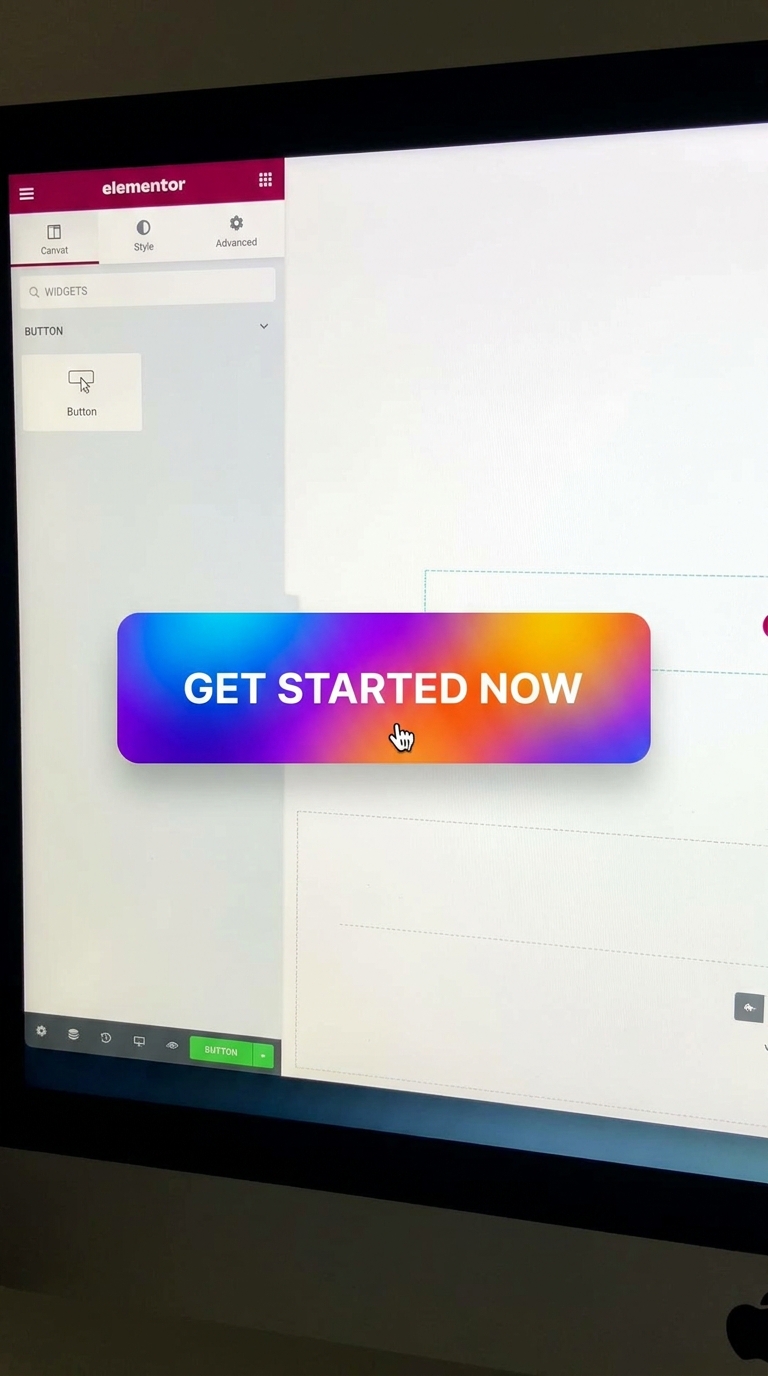
Why Use Gradient Buttons in Elementor?
Gradient buttons use karne ke kuch major benefits:
- More attractive CTA buttons
- Better user attention
- Modern website design
- Professional landing page look
- Higher engagement possibility
Aaj kal bahut si professional websites gradient buttons use karti hain because they look premium.
Step-by-Step: Create Gradient Button Design in Elementor
Step 1: Open Elementor Editor
Sabse pehle:
- WordPress Dashboard open karein
- Kisi page ko edit karein
- “Edit with Elementor” par click karein
Step 2: Drag the Button Widget
Left side Elementor panel se:
- Search karein “Button”
- Button widget ko drag karke page par drop karein
Ab aapka normal button ready ho jayega.
Step 3: Add Button Text
Content tab me:
- Button text likhein
- Example:
- Learn More
- Get Started
- Download Now
Button link bhi add kar sakte hain.
Step 4: Apply Gradient Background
Ab sabse important step.
Go To:
Style → Background
Ab:
- Background Type par click karein
- “Gradient” select karein
Step 5: Choose Gradient Colors
Ab 2 colors select karein.
Example combinations:
Blue Gradient
- First Color: #4F46E5
- Second Color: #9333EA
Orange Gradient
- First Color: #F97316
- Second Color: #EC4899
Green Gradient
- First Color: #10B981
- Second Color: #06B6D4
Aap angle bhi change kar sakte ho for different effects.
Step 6: Customize Typography
Ab button text stylish banate hain.
Go To:
Style → Typography
Settings:
- Font Weight: Bold
- Font Size: 16px–18px
- Text Transform: Uppercase (optional)
Readable font use karein.
Step 7: Adjust Button Padding
Padding button ko premium look deta hai.
Recommended Padding:
- Top/Bottom: 14px
- Left/Right: 30px
Ye button ko balanced look deta hai.
Step 8: Add Border Radius
Rounded buttons zyada modern lagte hain.
Go To:
Style → Border Radius
Recommended:
- 10px
- 20px
- 50px (pill style)
Step 9: Add Hover Effect
Hover animation button ko interactive banata hai.
Go To:
Style → Hover
Aap:
- Gradient colors change kar sakte ho
- Hover animation add kar sakte ho
- Text color modify kar sakte ho
Popular hover animations:
- Grow
- Float
- Pulse
Step 10: Make Button Responsive
Responsive design bahut important hai.
Elementor responsive mode me:
- Tablet check karein
- Mobile check karein
Ensure:
- Button text cut na ho
- Padding proper ho
- Button mobile par achha dikhe
Best Gradient Color Combinations
1. Purple Blue
- #4F46E5 → #9333EA
2. Pink Orange
- #EC4899 → #F97316
3. Green Cyan
- #10B981 → #06B6D4
4. Dark Modern
- #111827 → #374151
Tips for Better CTA Buttons
Use Clear CTA Text
Examples:
- Buy Now
- Start Free Trial
- Contact Us
- Join Today
Avoid Too Many Colors
2-color gradient best rehta hai.
Zyada colors button ko messy bana sakte hain.
Maintain Contrast
Text readable hona chahiye.
Dark background par white text best lagta hai.
Common Mistakes to Avoid
Very Bright Colors
Over-bright gradients cheap look de sakte hain.
Too Much Animation
Excessive hover effects user experience kharab kar sakte hain.
Small Padding
Tiny buttons professional nahi lagte.
Final Result
Ab aapka modern gradient button ready hai.
Ye:
- Attractive dikhega
- Website engagement improve karega
- Landing pages ko premium feel dega
Elementor me gradient buttons banana bahut easy hai aur aap bina coding ke professional design create kar sakte ho.
Conclusion
Gradient button design Elementor me website ko modern aur visually appealing banane ka easy tarika hai. Sirf kuch styling changes se aap simple button ko professional CTA me convert kar sakte ho.
Agar aap beginner ho to bhi is tutorial ko follow karke easily stylish gradient buttons create kar sakte ho.
FAQs
Can I create gradient buttons in Elementor free version?
Yes, basic gradient styling Elementor free version me bhi possible hai.
Which gradient colors look best?
Blue-purple aur orange-pink combinations bahut popular hain.
Are gradient buttons good for conversions?
Attractive CTA buttons user attention improve kar sakte hain, which may help conversions.
Do I need coding for gradient buttons?
No, Elementor me bina coding ke gradient buttons create kar sakte ho.