Introduction
Aaj ke time me users fast aur smooth website experience expect karte hain. Agar visitor ko important information tak pahunchne ke liye bahut zyada scroll karna pade, to chances hain ki woh page leave kar de.
Isi problem ko solve karta hai Scroll to Section Button.
Ye ek simple CTA (Call-to-Action) button hota hai jo user ko page ke kisi specific section tak instantly le jata hai. Jaise:
- Contact Form
- Pricing Section
- Services Section
- Portfolio Section
- Testimonials
- FAQ Section
Agar aap Elementor use karte hain to bina coding ke sirf kuch minutes me Scroll to Section Button create kar sakte hain.
Google ke latest Helpful Content aur Page Experience approach ke hisab se bhi users ko information tak quickly pahunchana important hai. Isliye Scroll to Section Button modern websites ka ek useful navigation element ban chuka hai.
Is guide me hum detail me dekhenge ki Scroll to Section Button kya hota hai, Elementor me kaise create karte hain, CSS ID kaise use karte hain aur best practices kya hain.
Scroll to Section Button Kya Hota Hai?
Scroll to Section Button ek clickable button hota hai jo page ke kisi specific section tak automatically scroll kar deta hai.
Example:
Hero Section me button:
View Services
Click karte hi page:
Services Section tak scroll ho jata hai.
Isi tarah:
- Learn More
- Contact Us
- View Pricing
- Explore Portfolio
Ye sab Scroll Buttons ke examples hain.
Scroll to Section Button Kyu Important Hai?
Better User Experience
Users ko manually content search nahi karna padta.
Faster Navigation
Ek click me required information mil jati hai.
More Engagement
Visitors zyada sections explore karte hain.
Mobile Friendly
Long pages par mobile users ko help milti hai.
Better Conversion Opportunities
Users quickly contact form ya pricing section tak pahunch sakte hain.
Google Helpful Content Guidelines Ke Hisab Se Scroll Buttons
Google directly scroll buttons ko ranking factor nahi maanta.
Lekin Google ye zaroor prefer karta hai ki website:
- Easy to navigate ho
- Mobile-friendly ho
- Helpful ho
- User-focused ho
Scroll to Section Button users ko important content tak quickly pahunchne me help karta hai.
Ye:
- User frustration kam karta hai
- Navigation improve karta hai
- Content discovery easy banata hai
Isi liye indirectly user experience better hota hai.
Scroll to Section Button Kab Use Karna Chahiye?
Ye button sabse useful hota hai:
Landing Pages
Visitors ko CTA section tak guide karne ke liye.
Freelancer Websites
Portfolio ya contact form tak le jane ke liye.
Agency Websites
Services section tak scroll karne ke liye.
One-Page Websites
Navigation simplify karne ke liye.
Long Sales Pages
Pricing aur CTA sections tak quickly pahunchne ke liye.
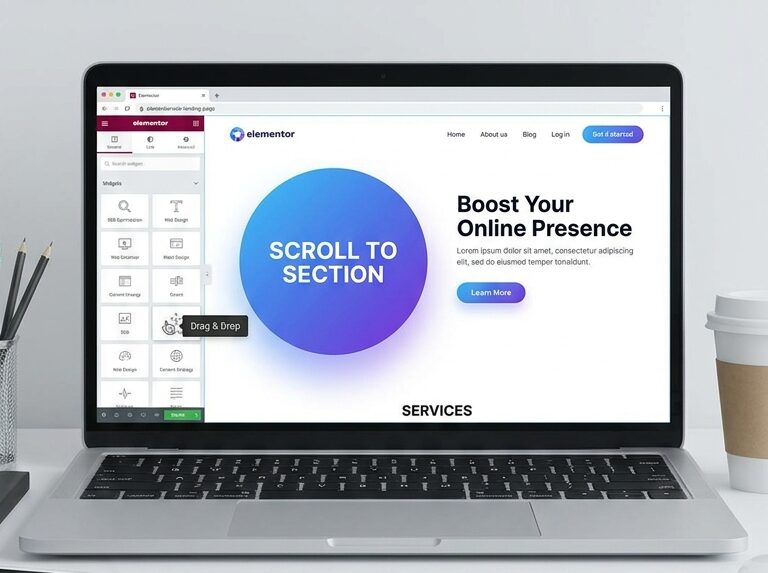
Elementor Me Scroll to Section Button Kaise Banaye?
Elementor me ye process bahut simple hai.
Step 1: Elementor Page Open Kare
Dashboard → Pages → Edit with Elementor
Us page ko open kare jahan Scroll Button create karna hai.
Step 2: Target Section Select Kare
Maan lijiye aap Contact Form section tak scroll karwana chahte hain.
Contact Form wali container ya section select kare.
Step 3: CSS ID Add Kare
Section select karne ke baad:
Advanced → CSS ID
Field me likhe:
contact
Agar Services section hai to:
services
Agar Pricing section hai to:
pricing
Important:
CSS ID me spaces use nahi karne chahiye.
Wrong:
contact form
Correct:
contact
Step 4: Button Widget Add Kare
Elementor search bar me:
Button
search kare.
Button widget drag and drop kare.
Step 5: Button Text Add Kare
Examples:
- Learn More
- Contact Us
- View Pricing
- Explore Services
- See Portfolio
Hero section ke liye best option:
Learn More
Step 6: Button Link Add Kare
Button select kare.
Link field me likhe:
#contact
Yahan:
CSS ID:
contact
Button Link:
#contact
Button click karte hi page Contact section tak scroll ho jayega.
Different Scroll Button Examples
Contact Form Button
CSS ID:
contact
Link:
#contact
Services Button
CSS ID:
services
Link:
#services
Pricing Button
CSS ID:
pricing
Link:
#pricing
Portfolio Button
CSS ID:
portfolio
Link:
#portfolio
Best Button Text Ideas
Good CTA text users ko clear direction deta hai.
Examples:
Hero Section
- Learn More
- Get Started
- Explore Services
Business Websites
- View Pricing
- Request Quote
Freelancer Websites
- View Portfolio
- Contact Me
Landing Pages
- See Features
- Start Now
Best Placement for Scroll Buttons
Placement conversion aur engagement dono ko impact karti hai.
Hero Section
Sabse common placement.
Visitors page open karte hi CTA dekhte hain.
Services Introduction
Detailed services section tak le jane ke liye.
About Section
Portfolio ya testimonials tak guide karne ke liye.
Sticky Header
One-page websites me useful.
Scroll Button Design Best Practices
Use Contrasting Colors
Button page se alag dikhna chahiye.
Popular combinations:
- Blue + White
- Purple + White
- Black + White
- Red + White
Proper Button Size
Desktop:
- Height 50px
Mobile:
- Height 55px
Button easily clickable hona chahiye.
Add Hover Effects
Hover effects user interaction improve karte hain.
Examples:
- Color change
- Border animation
- Shadow effect
Lekin excessive animation avoid kare.
Use Clear CTA Text
Wrong:
Click Here
Better:
View Services
Best:
Explore My Services
Mobile Optimization Tips
Google Mobile-First Indexing use karta hai.
Isliye mobile experience bahut important hai.
Check kare:
✅ Button visible ho
✅ Text readable ho
✅ Easy tap target ho
✅ Scroll action properly work kare
✅ Section correctly open ho
Common Mistakes to Avoid
Wrong CSS ID
Wrong:
contact form
Correct:
contact
Missing # Symbol
Wrong:
contact
Correct:
#contact
Too Many Scroll Buttons
Har section me button add karne ki zaroorat nahi.
Important sections par focus kare.
Poor Placement
Button ko page ke niche hide mat kare.
Hero section sabse effective location hoti hai.
Accessibility Best Practices
Google aur users dono accessibility ko importance dete hain.
Clear Labels
Use:
Learn More
Avoid:
Click Here
Good Contrast
Text clearly readable hona chahiye.
Large Click Area
Button comfortably clickable hona chahiye.
Mobile Friendly Design
Touch devices par testing zaroor kare.
SEO Impact of Scroll to Section Buttons
Scroll buttons direct ranking factor nahi hain.
Lekin indirectly help kar sakte hain:
- Better engagement
- Improved navigation
- Better usability
- Enhanced user experience
- Easier content discovery
Google ka focus user satisfaction par hai, aur Scroll Buttons isi experience ko improve karte hain.
Real Example
Maan lijiye aap ek WordPress Elementor Freelancer hain.
Aapki homepage par ye sections hain:
- Hero
- Services
- Portfolio
- Testimonials
- Contact Form
Hero section me:
View Services
button add karte hain.
Button click karte hi user Services section tak pahunch jata hai.
Result:
- Better navigation
- More interaction
- Better user experience
Isi tarah:
Contact Me
button users ko direct contact form tak le ja sakta hai.
Final Thoughts
Scroll to Section Button Elementor websites ke liye ek simple lekin powerful navigation tool hai.
Ye:
- User experience improve karta hai
- Visitors ko guide karta hai
- Mobile navigation better banata hai
- Important sections tak fast access provide karta hai
- Modern website design ko enhance karta hai
Agar aap Elementor use karte hain to CSS ID aur Anchor Links ki help se bina coding ke easily Scroll to Section Button create kar sakte hain.
User-friendly navigation aaj ke modern web design ka important part hai, aur Scroll Buttons us experience ko aur bhi smooth bana dete hain.